Bring your history
Keep your history.
Change your logbook.
Bring your sessions into minclick. Choose your current logbook for the right export and import steps.
In Bink
Start from your profile.
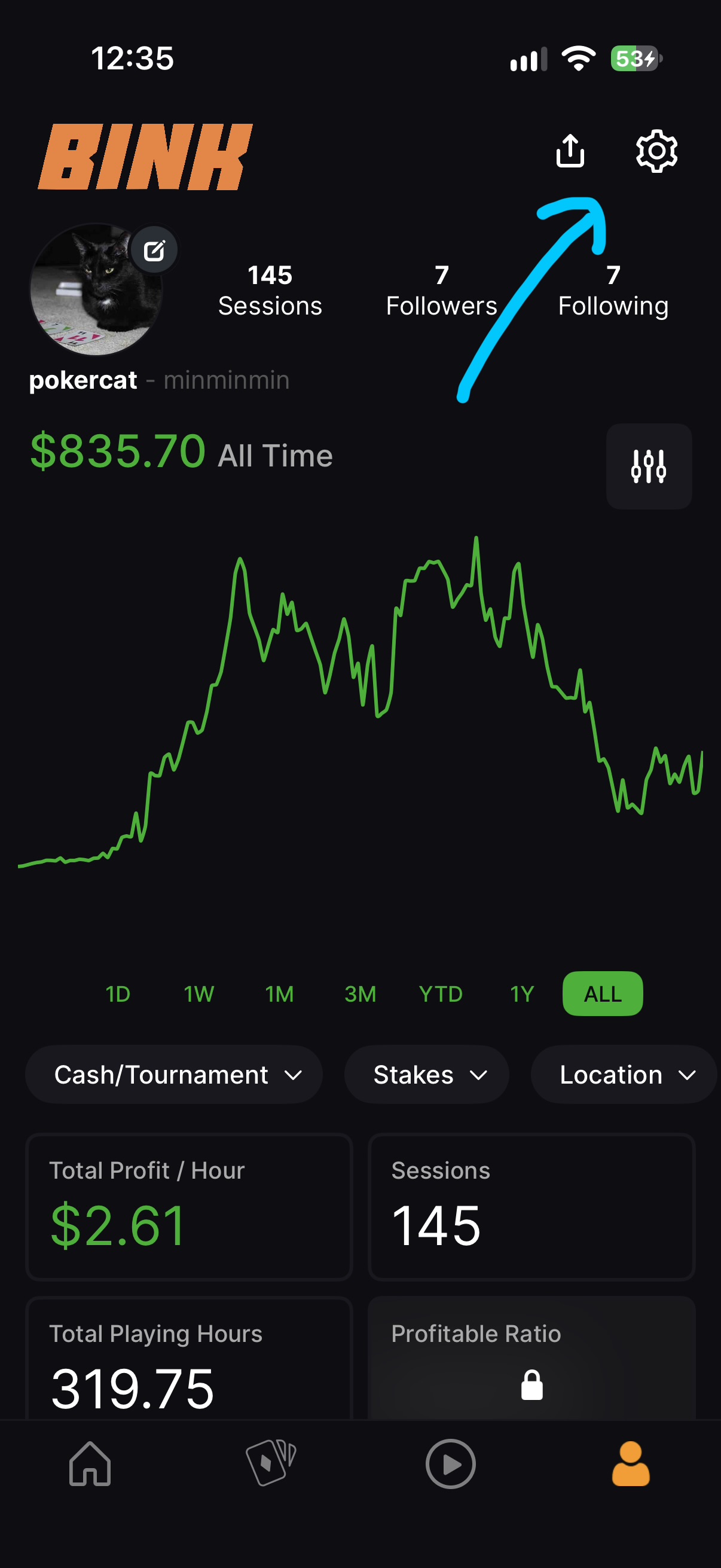
Open Bink and go to your profile using the person icon in the bottom navigation. Tap the settings gear at the top right.
The blue arrow in each screenshot points to the control you need.
In Bink
Open User settings.
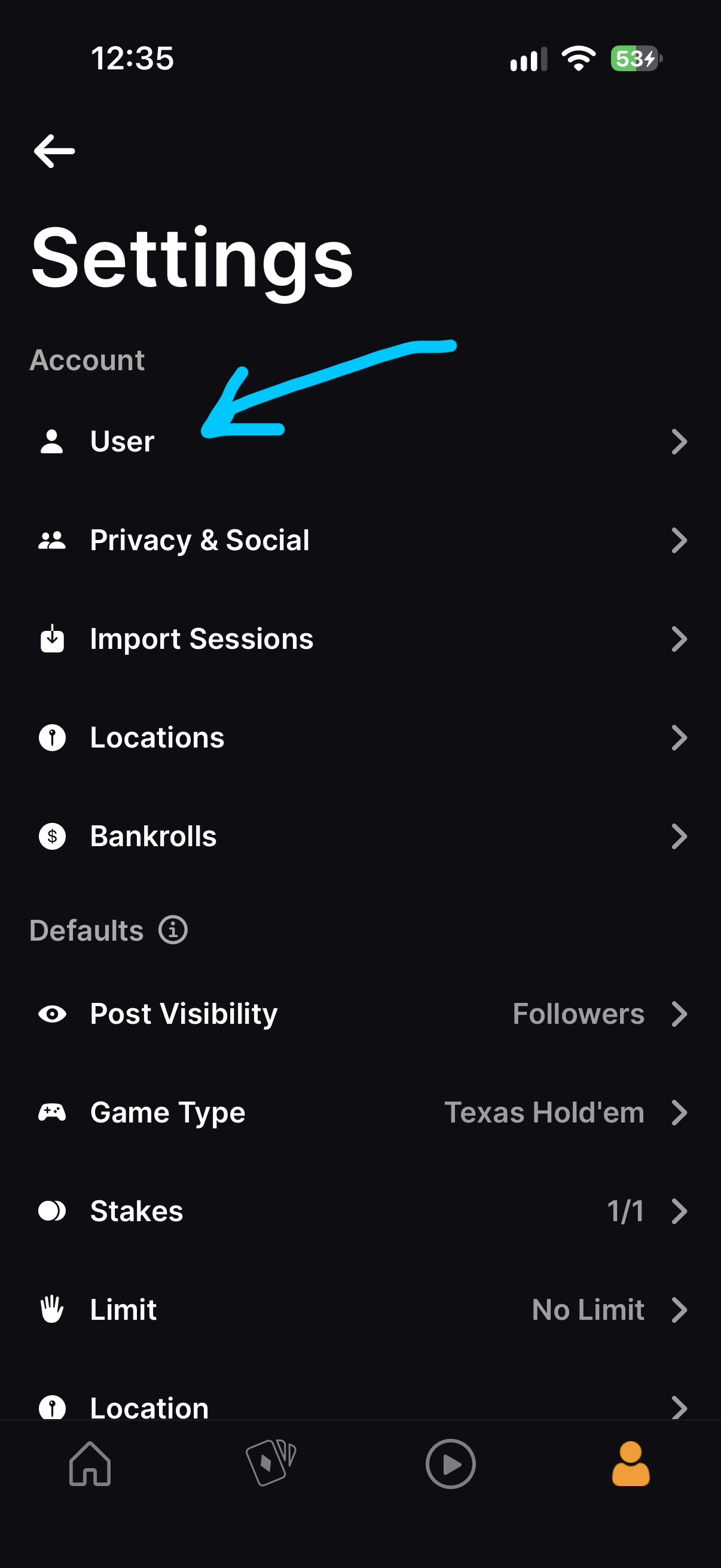
Under Account, tap User. This is where Bink keeps its session export option.
Choose User, not Import Sessions. You are exporting your existing history first.
In Bink
Export your sessions.
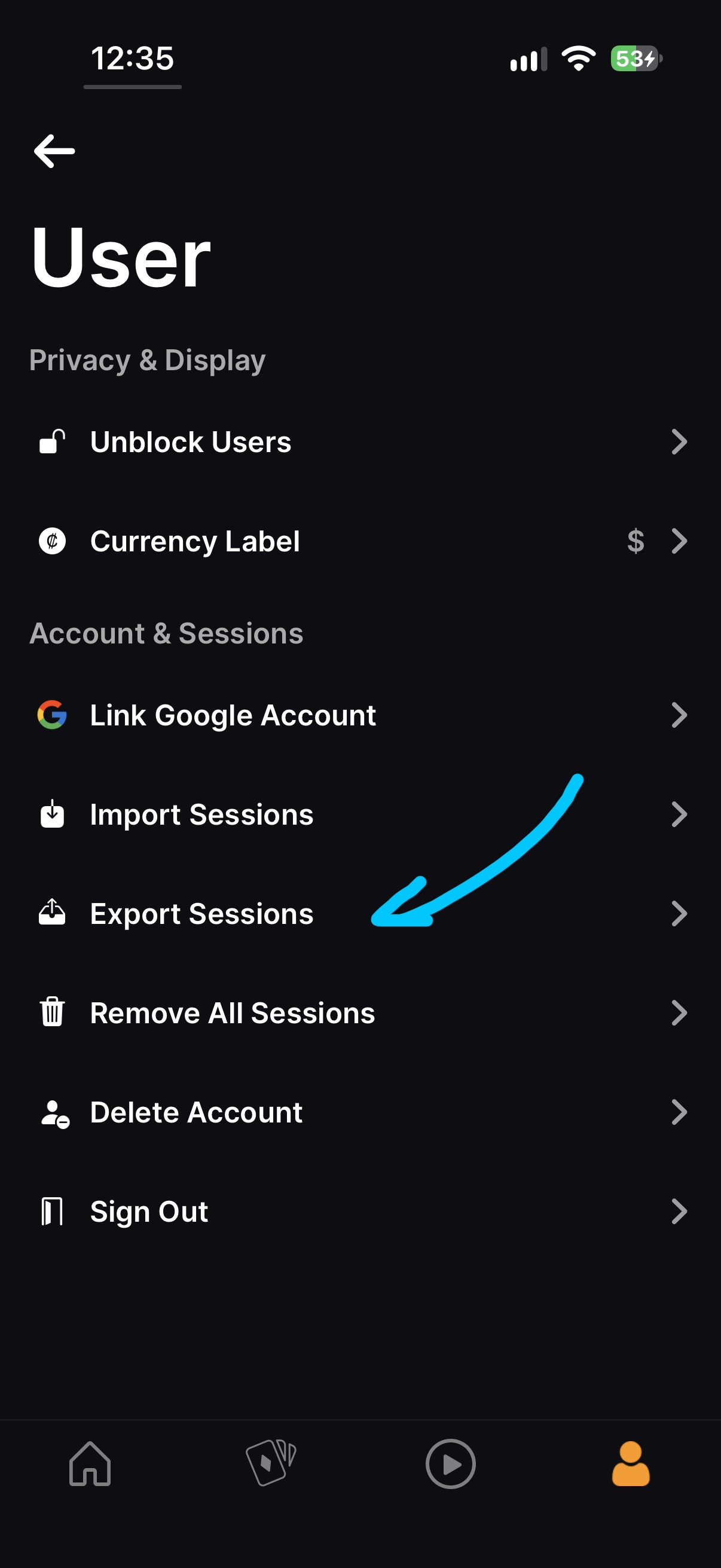
Tap Export Sessions. When the iOS share sheet opens, choose Save to Files and remember the folder.
Keep the original CSV file. Do not turn it into a screenshot, PDF, or Excel workbook.
Look for a file named BinkSessionsExport. Files may hide the .csv extension.
In minclick
Bring it into minclick.
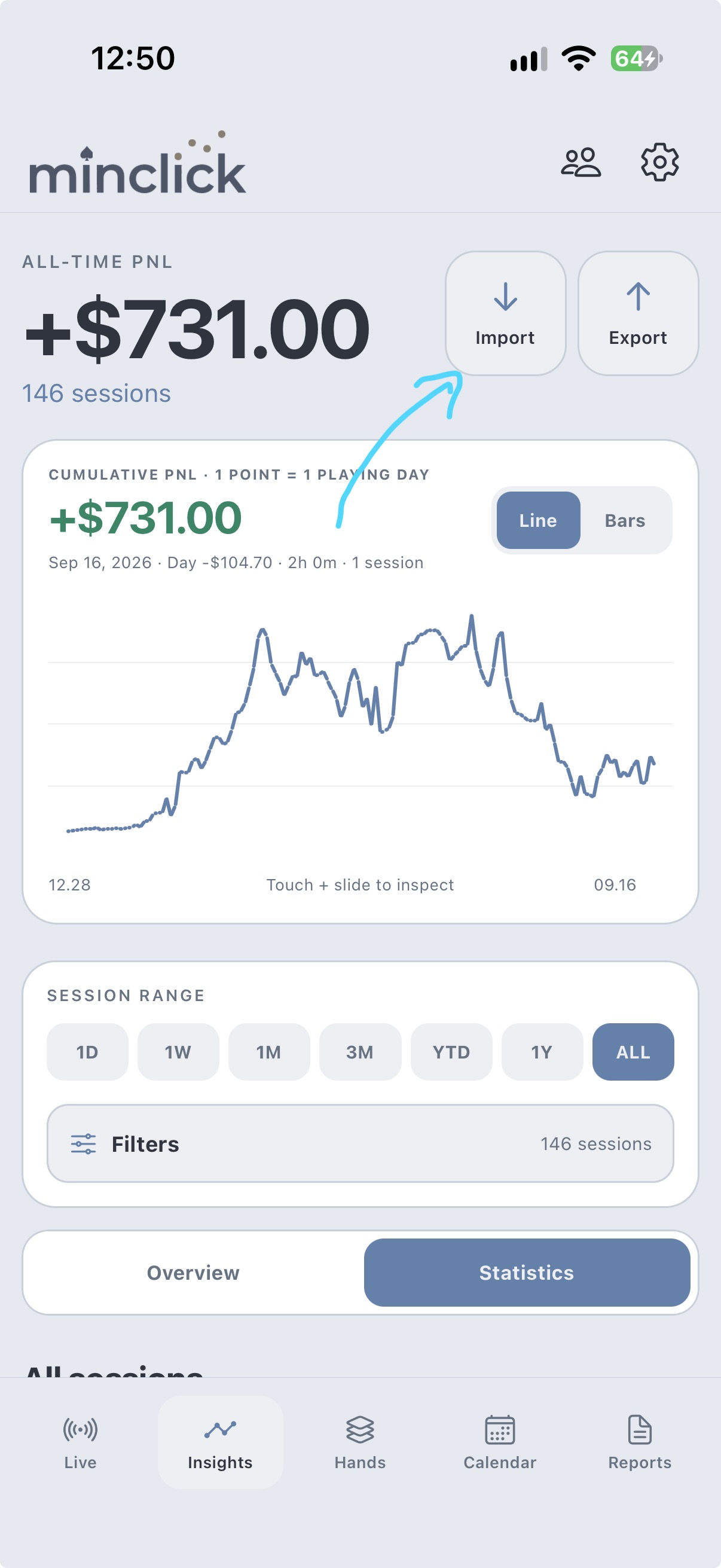
In the current App Store release, open Insights and tap Import beside your all-time PnL.
In the next update, Import moves to Settings → Your Data → Import session CSV. The file selection and preview stay the same.
CSV import is free. You do not need an account or Pro subscription.
In minclick
Choose the file. Check the preview.
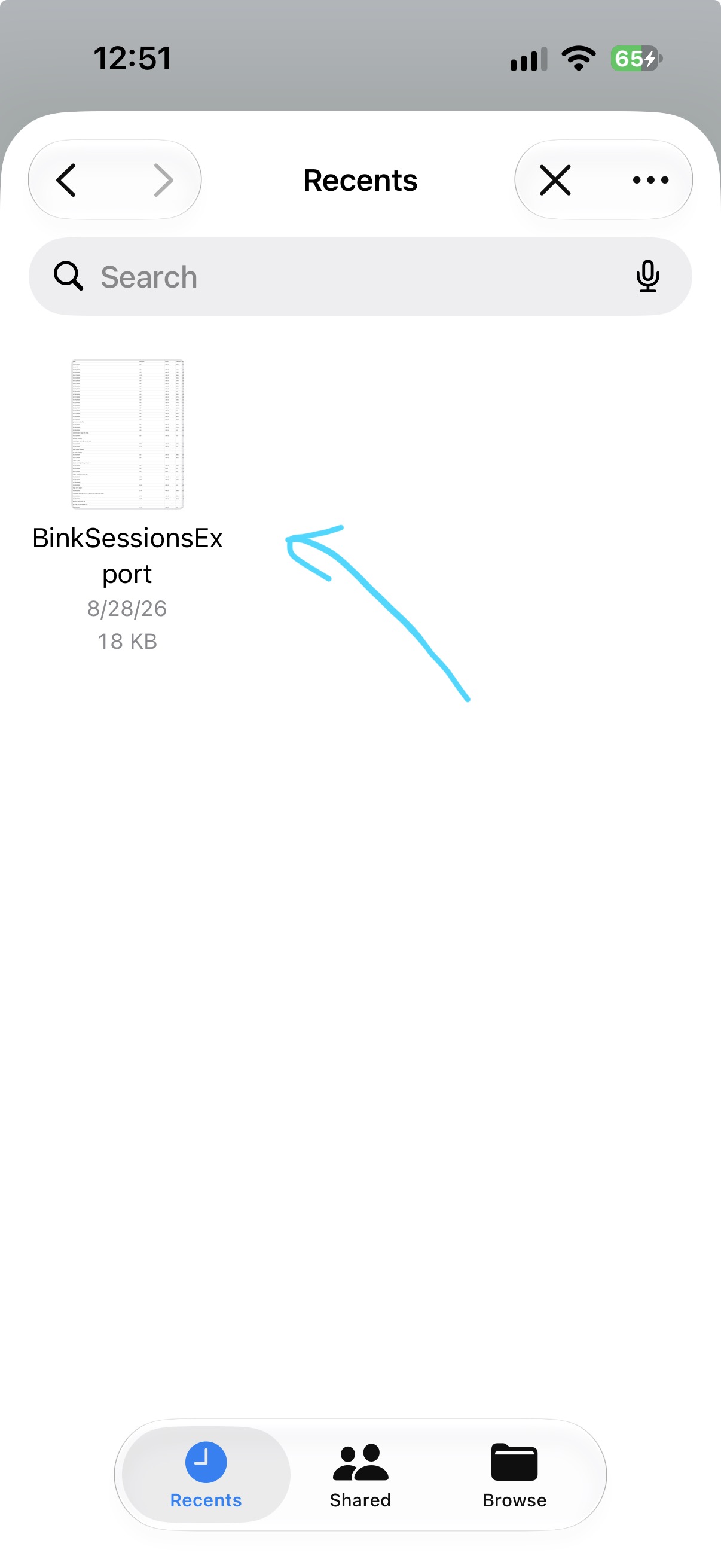
Select your exported CSV in Files. If it is not in Recents, tap Browse and open the folder where you saved it.
minclick shows the new session count, hours, and PnL before adding anything. Review those totals, then confirm the import.
Already imported sessions are skipped when they match. Your existing minclick sessions stay in place.
In Poker Analytics 7
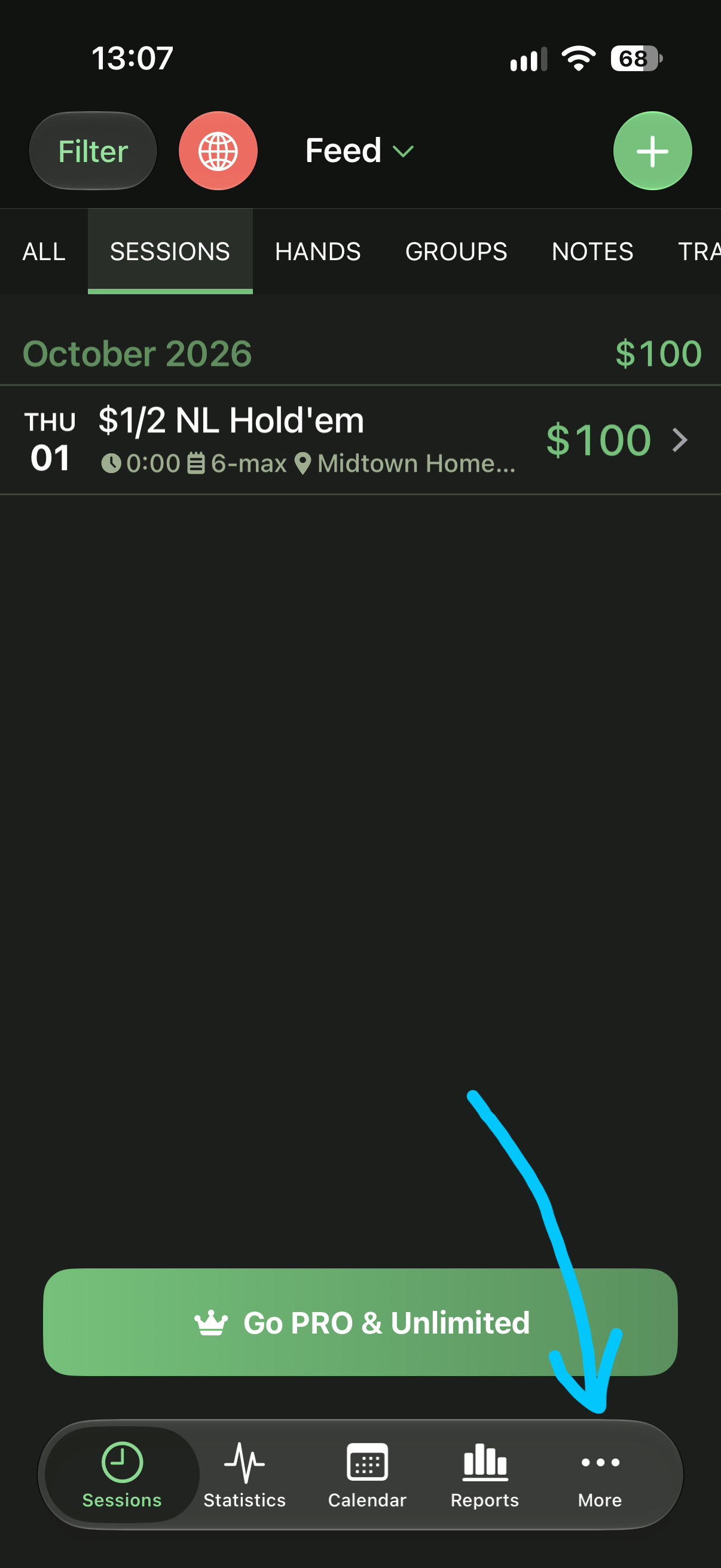
Open More.
Tap More, the three-dot icon at the bottom right. Then open Settings.
The blue arrow points to the More tab.
In Poker Analytics 7
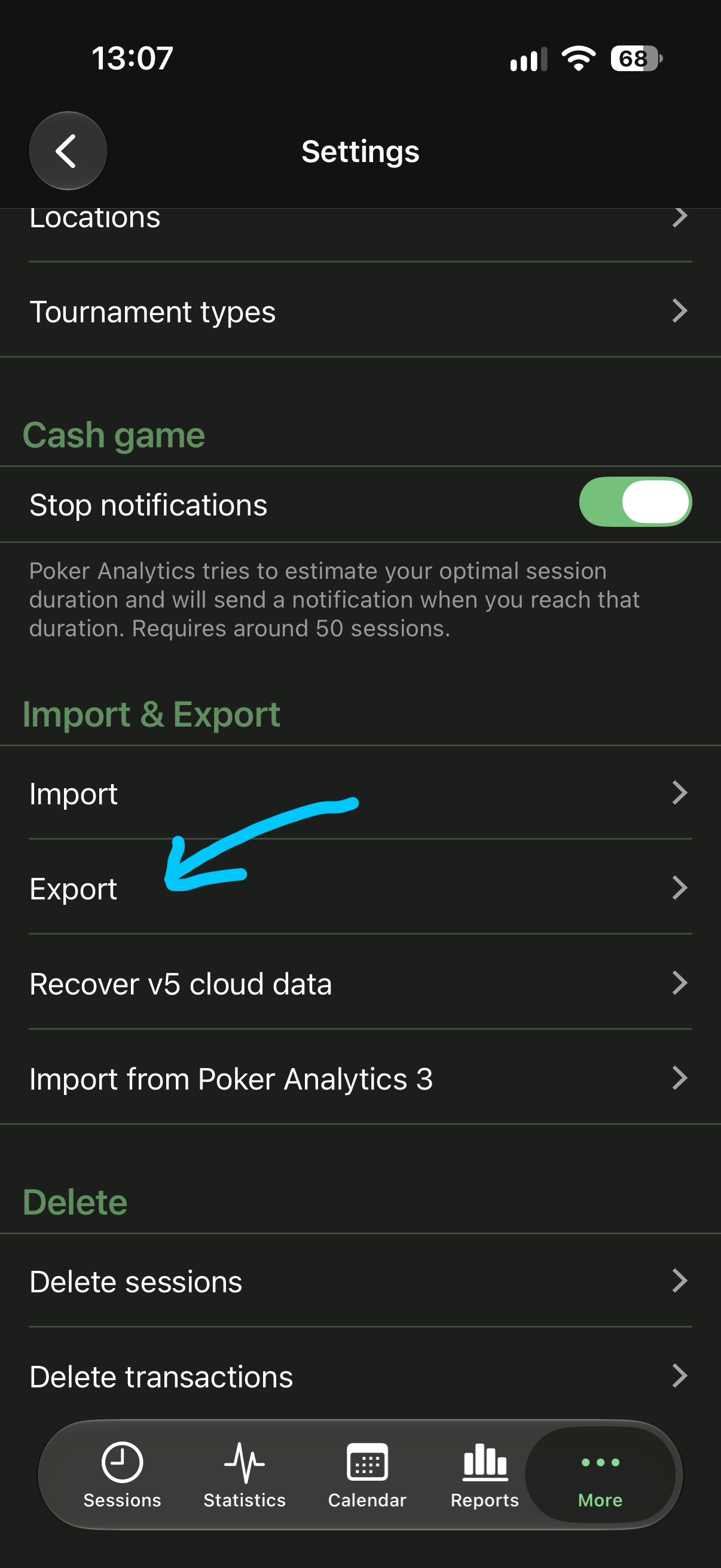
Find Export in Settings.
Scroll to Import & Export in Settings. Tap Export.
Keep your original history in Poker Analytics until you have checked the imported totals in minclick.
In Poker Analytics 7
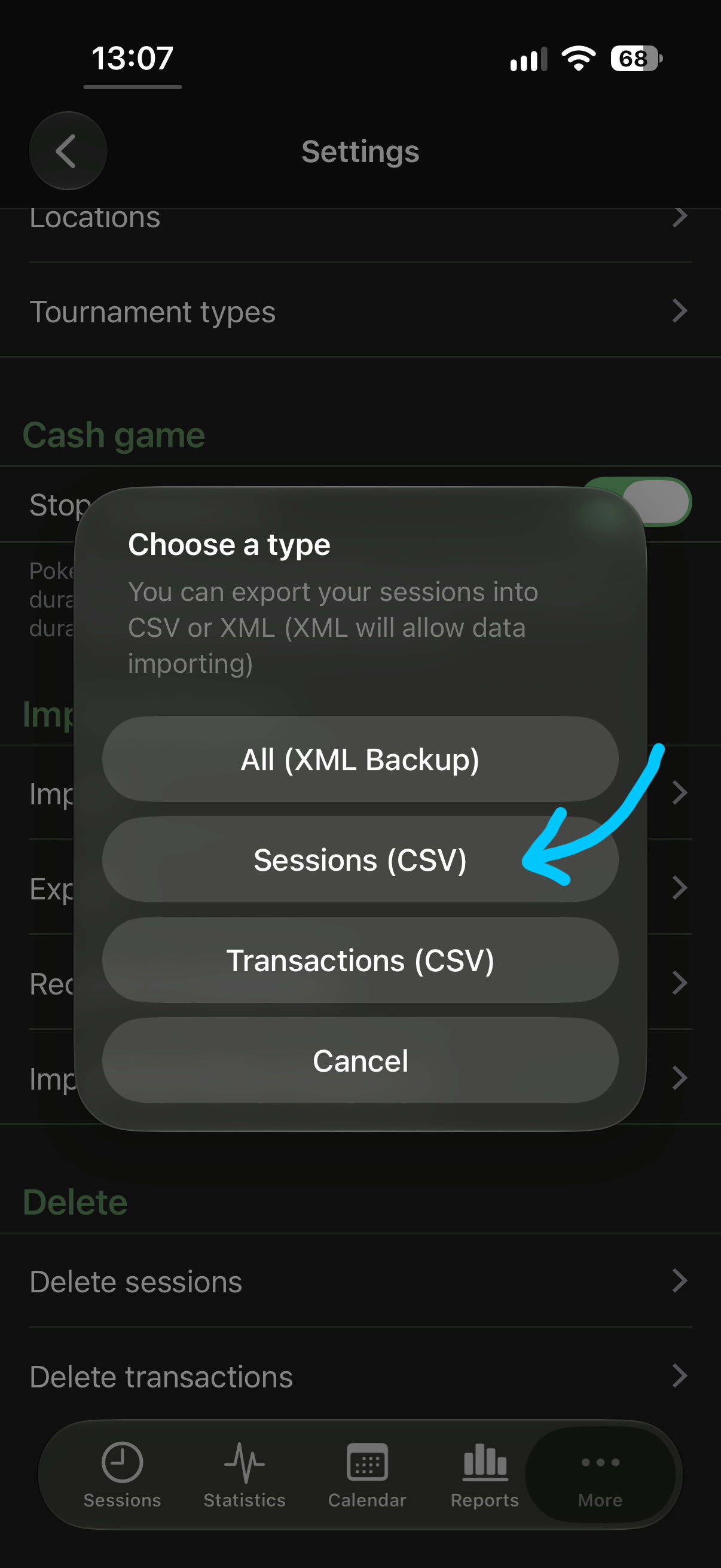
Choose Sessions (CSV).
Select Sessions (CSV). In the share sheet, choose Save to Files and remember the folder.
Do not choose All (XML Backup) or Transactions (CSV). This guide moves session history, not the full Poker Analytics backup.
The file name starts with Sessions_ and includes the export date and time. Keep the original .csv file.
In minclick, after the update
Import your session CSV.
Open Settings → Your Data → Import session CSV. minclick recognizes the Poker Analytics session format automatically.
The screenshot shows Import in Insights in the current release. In the update that adds Poker Analytics support, this control moves to Settings.
Import is free and does not require an account or Pro subscription.
In minclick, after the update
Select Sessions_…csv.
Choose the Sessions_…csv file you saved. Use Browse if it is not in Recents.
Review the session count, playing hours, and PnL before confirming. Compare them with Poker Analytics and check the currency.
The Files screenshot is a Bink example. For Poker Analytics, select your Sessions CSV instead of BinkSessionsExport.
Keep the session, not just the total.
Session records
Dates, playing time, buy-ins, cash-outs, PnL, tips, stakes, games, locations, live or online play, and comments move into minclick. Tips are not subtracted from the exported PnL a second time.
Original export details
Poker Analytics-specific fields are preserved with the record for complete minclick CSV and JSON backups. A bankroll name does not create a minclick bankroll, and hand counts do not create hand histories. Photos and videos are not part of this session CSV.
Use the original English Sessions CSV. It has no timezone offset, so dates use your device’s current timezone; check the dates and hours in the preview. The file must use one currency that matches your minclick ledger. Import does not convert currencies.
What if minclick rejects the file?
Exports with unrecognized break durations, ambiguous daylight-saving times, or inconsistent cash and online totals are rejected without saving any sessions. Keep the original file and contact support rather than editing numbers to force an import.
Moving between your own devices?
Use a Complete minclick CSV to move session records. For a fuller copy of your logbook, use a JSON backup instead.
Export from the original device.
In the current release, open Insights → Export and choose Complete minclick. Save the CSV to Files. In the next update, use Settings → Your Data → Export sessions as CSV.
Import on the new device.
Open Insights → Import in the current release, or Settings → Your Data → Import session CSV in the next update. Choose the CSV in Files.
Review, then confirm.
Check the new session count, playing hours, and PnL in the preview. Your existing sessions stay in place, and matching sessions are skipped. Both devices must use the same ledger currency.
Check the format before you move.
Have a CSV from a different poker app? CSV layouts vary. minclick currently recognizes Bink Sessions CSV and Complete minclick Sessions CSV, not every app’s export.
Keep the original export.
Export your session history as CSV if your app supports it. Keep a backup and leave the original app data in place.
Tell us which logbook you use.
Send the app name and the names of the CSV columns to support. Do not include private session rows. We can check the format and use it to plan an app-specific guide.
What comes with you.
Your session history
Dates, playing hours, buy-ins, cash-outs, stakes, locations, game types, expenses, and notes when included in the Bink export.
What stays separate
Bink session CSVs do not include hand histories, photos, or videos. The CSV also does not supply exact start/end times or a currency label.
Your file is read on your device, not uploaded by the importer. Backup and sync follow the settings you separately enable.
Before you leave your old logbook.
Can I import from another app?
minclick currently recognizes the original Bink Sessions CSV and the complete minclick Sessions CSV. Other CSV layouts, Excel workbooks, and PDFs are not supported directly. Contact support about your app and export format before editing a file. Please do not send private session data unless requested.
Will importing replace my existing sessions?
No. Import adds new sessions and skips matching sessions already present. Re-importing an unchanged file is safe; editing a row can make it count as a new session. Use the preview to check before confirming.
What should I check after importing?
Compare your session count, total hours, and PnL with the original export. Check a few sessions, dates, notes, and your ledger currency in Settings. Bink PnL is cash-out minus buy-in; exported expenses are not deducted a second time. Keep your original export until you are satisfied.
Why can’t minclick read my file?
Use the original CSV export with its header row intact. Files must be no larger than 10 MB. If a file is greyed out in Files, check that it has a .csv extension and is downloaded from iCloud. For minclick CSVs, the exported currency must match your ledger currency.
Is a CSV export a complete backup?
No. A sessions CSV is for moving session records, not every piece of app data. In minclick, use Settings → Your Data → Backup & Sync → Back up for a JSON backup of your local logbook. Recording videos are managed separately.
Bink and Poker Analytics are separate apps and are not affiliated with minclick. Screens show the export flows captured for this guide; menus may vary by app version.